Language Hub, s. r. o.
Language Hub Students' Wiki
Join virtual classroom
(Restore this version)
Modified: 25 September 2026, 10:14 AM User: Josef Milon | Language Hub →
Basic parameters
Systems: BigBlueButton 3.0.32 (08/2026), Moodle 3.1.
Technology: HTML5
Minimal requirements: Check the producer webpage
Virtual classroom identification: "Virtual Classroom [Course code]". Example: Virtual Classroom [C 072].
Link: It is a string "https://www.language-hub.org/mod/bigbluebuttonbn/view.php?id=[xxxxx]", where last digits are unique. This is a permanent link.
Virtual classroom access:
Two options:
-
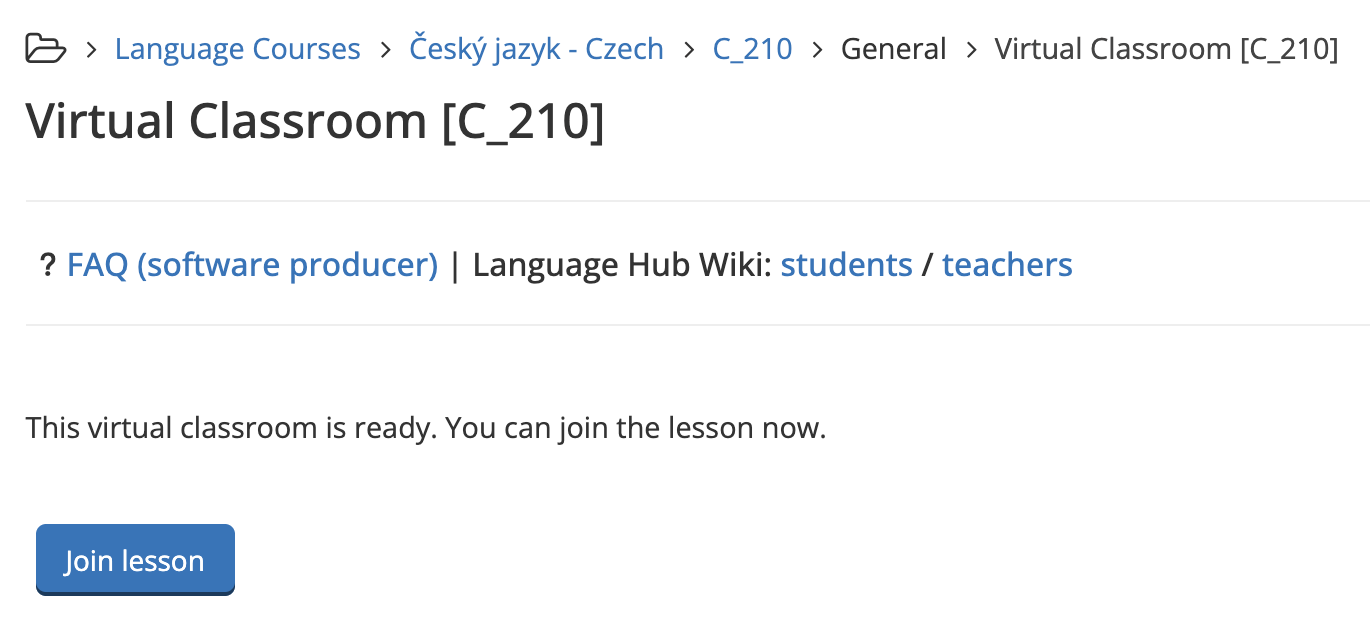
- Main Page > Dashboard > Course > Virtual Classroom > Join lesson
- Permanent link > Join lesson
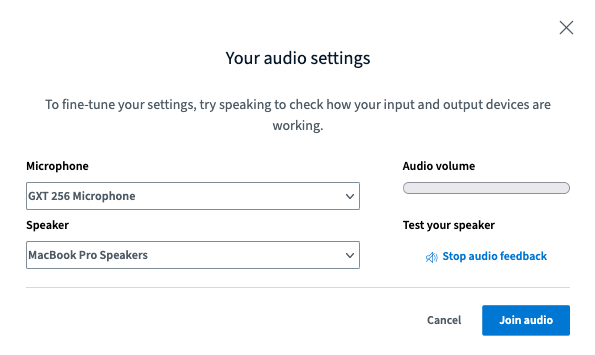
Check your microphone/speaker settings and click Join audio
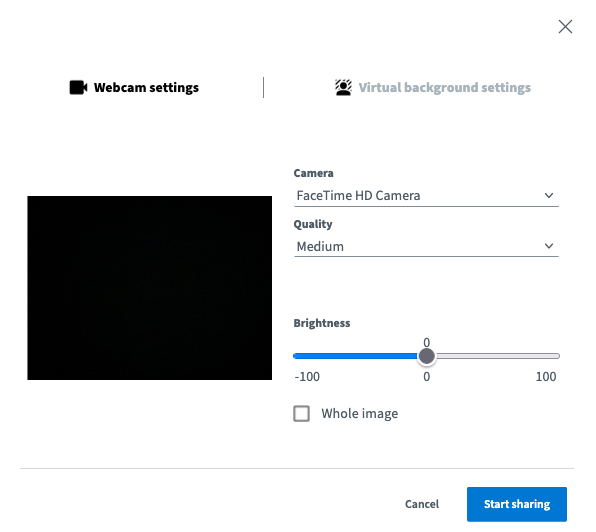
Start sharing your camera.
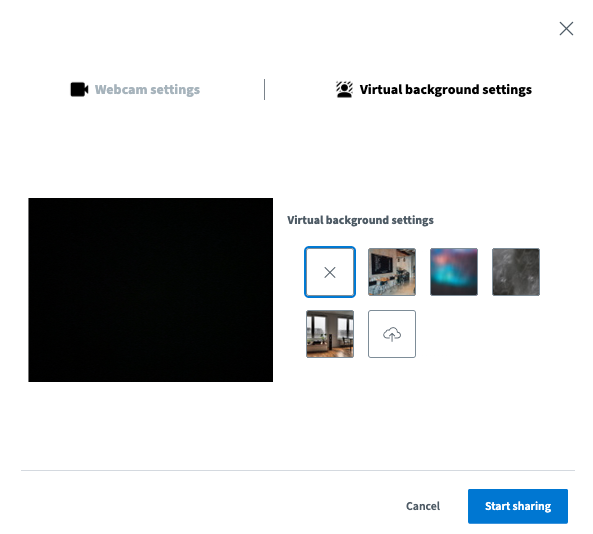
You are now connected to the virtual classroom.
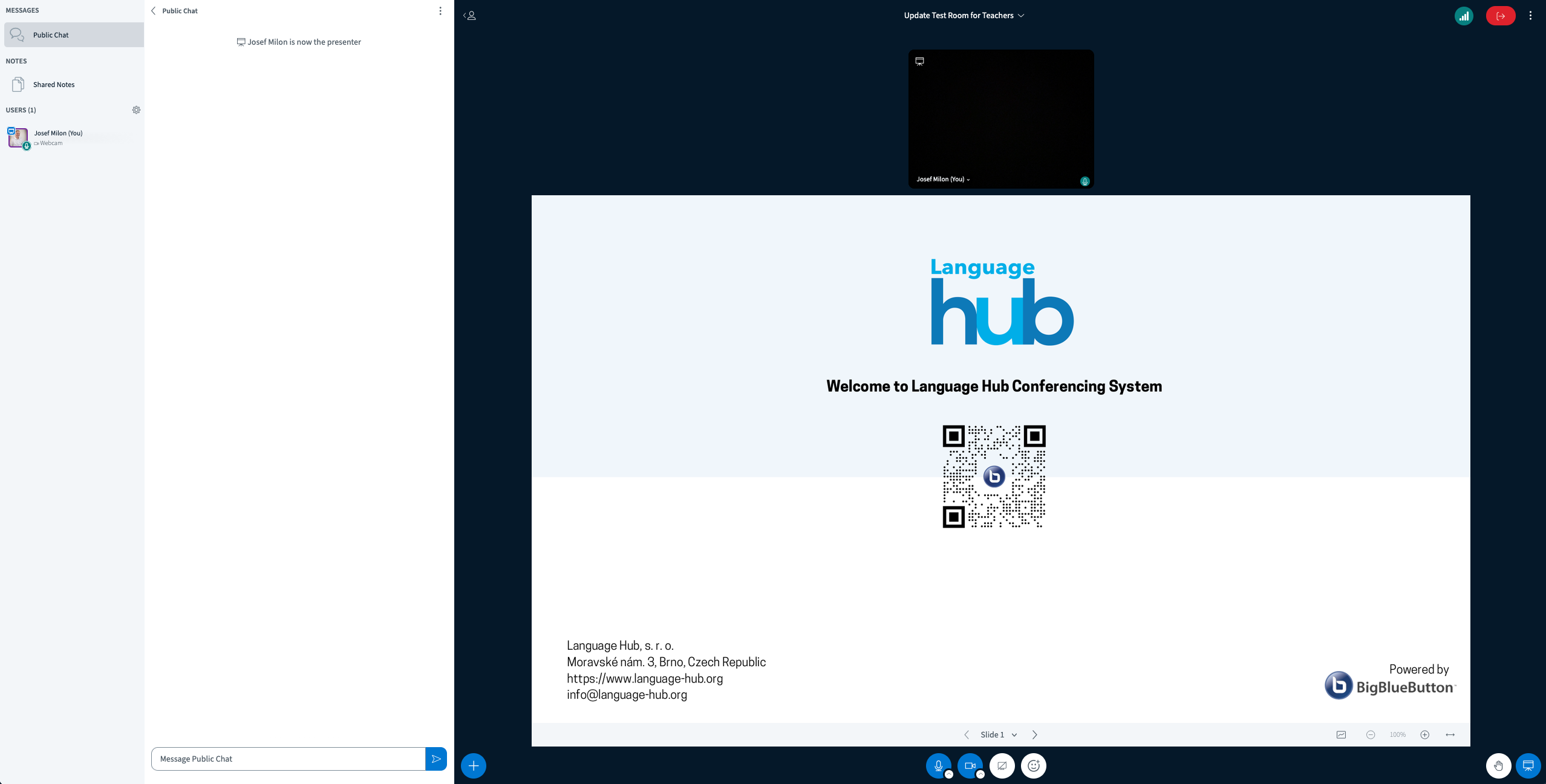
Hints
Chat window export
It is possible to export the chat window
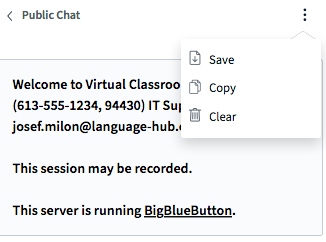
Warning: When the lesson is ended, the contents of the chat window will no longer be available.
Shared notes
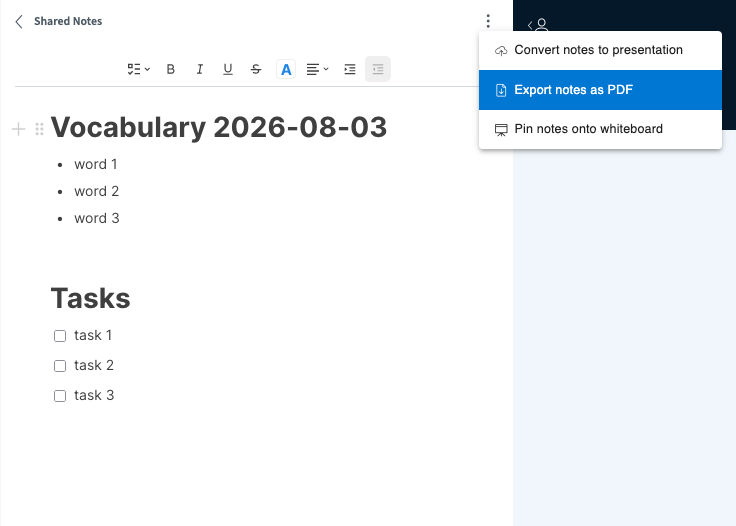
This collaborative tool allows users to participate in real-time text creation/revision. It is possible to export the contents in PDF format.
White board
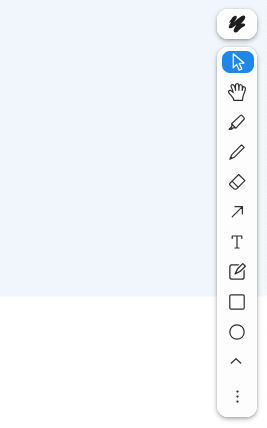
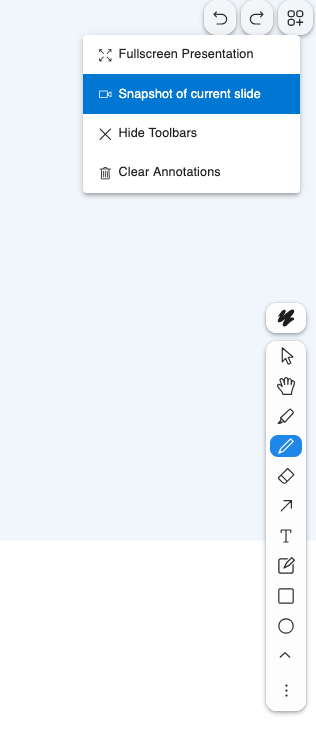
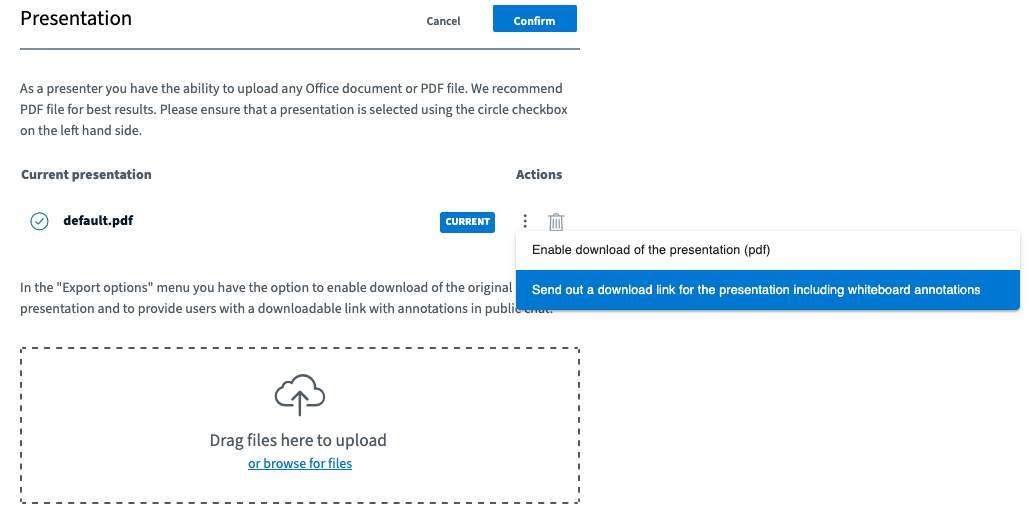
There are different tools available for usage in the whiteboard. You can insert text, draw shapes, underline or use handwriting to share your ideas. Please have in your mind that the contents of the whiteboard will be erased once you close the session. To keep it for the further usage you need to do the snapshots during the session or you can allow downloading the presentation with all your remarks and annotations. The file(s) you can then upload to the course folder.
Test site
Go to https://bbb.language-hub.org/rooms/ymy-7rq-jff-kxt/join (access code: xg9edv) to test the environment.
What if
You disconnect from the Internet
The system keeps the current virtual classroom. Until you log out from the classroom, all contents will be available. If you disconnect from the Internet (or your computer freezes), simply return to the classroom as soon as possible. No information will be lost and users will be still connected.
Your sound or camera stops working
Refresh you browser and check your Internet connection. If the problem persists, contact us via email info@language-hub.org or call us at +420 544 212 355.
You cannot connect to the classroom at all
This issue is usually caused by restrictions imposed by your internet service provider, browser settings, or your company's security policy. Try the following:
- Disconnect from your VPN (virtual private network), restart your browser, and try connecting again.
- Connect to a different Wi-Fi network.
- Check your browser settings, especially ad-blocking and automatic translation extensions.
- Try using a different computer.
Is the information on this page incomplete or incorrect? Let us know.