Virtual classrooms
Basic parameters
Systems: BigBlueButton 3.0.32 (08/2026), Moodle 3.1.
Technology: HTML5
Minimal requirements: Check the producer webpage
Virtual classroom identification: "Virtual Classroom [Course code]". Example: Virtual Classroom [C 072].
Link: It is a string "https://www.language-hub.org/mod/bigbluebuttonbn/view.php?id=[xxxx], where last digits are unique. This is a permanent link.
Virtual classroom access:
Two options:
-
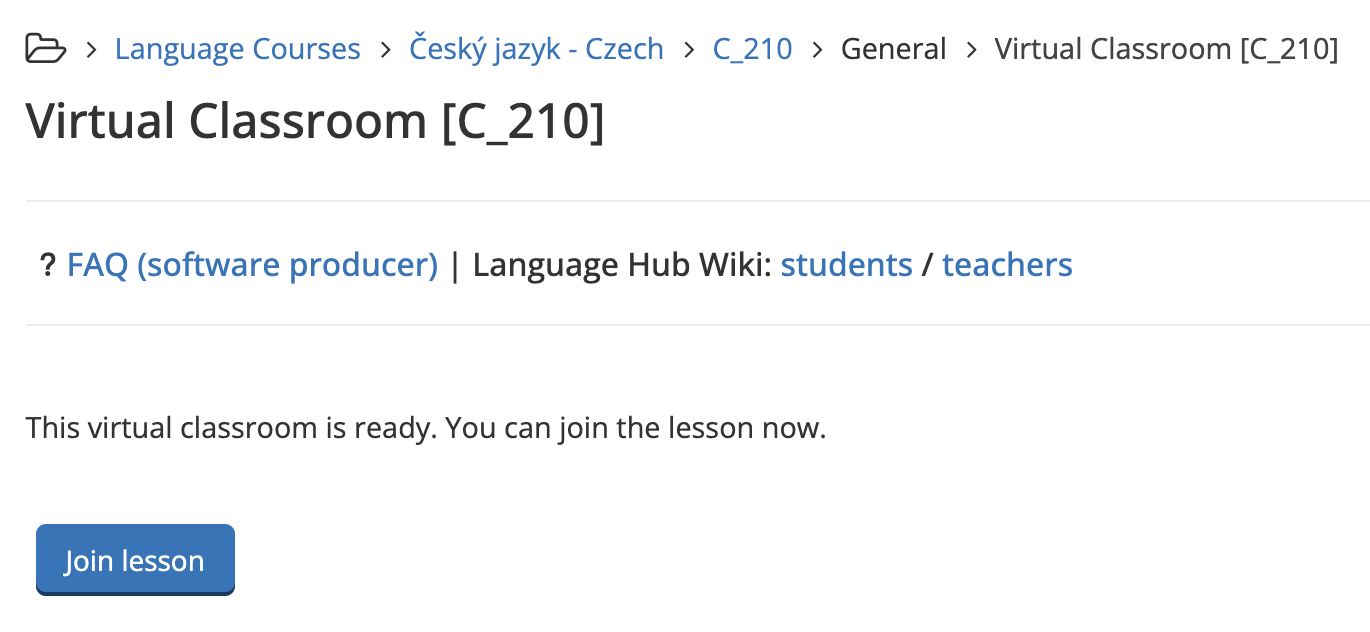
- Main Page > Dashboard > Course > Virtual Classroom > Join lesson
- Permanent link > Join lesson
- From the e-mail remainder
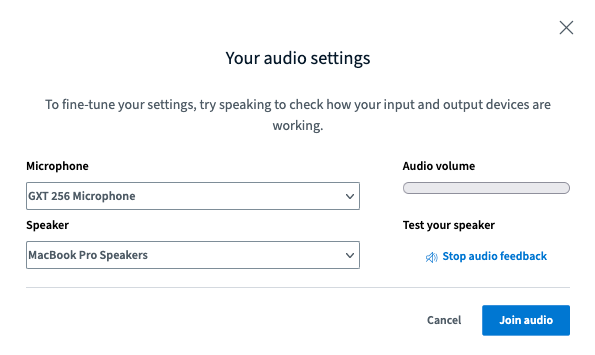
Connect the microphone (your browser will ask you for the permission when being used for the first time.
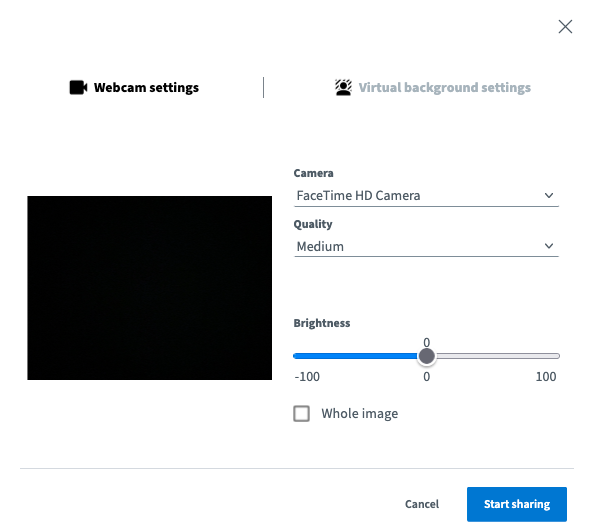
Start sharing your camera.
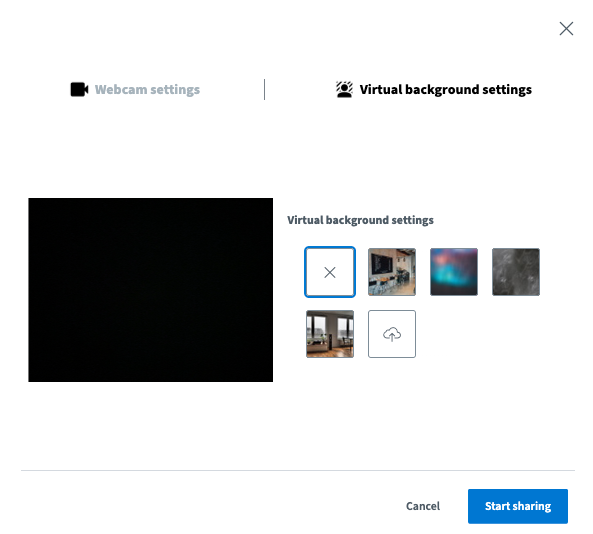
You are now connected to the virtual classroom.
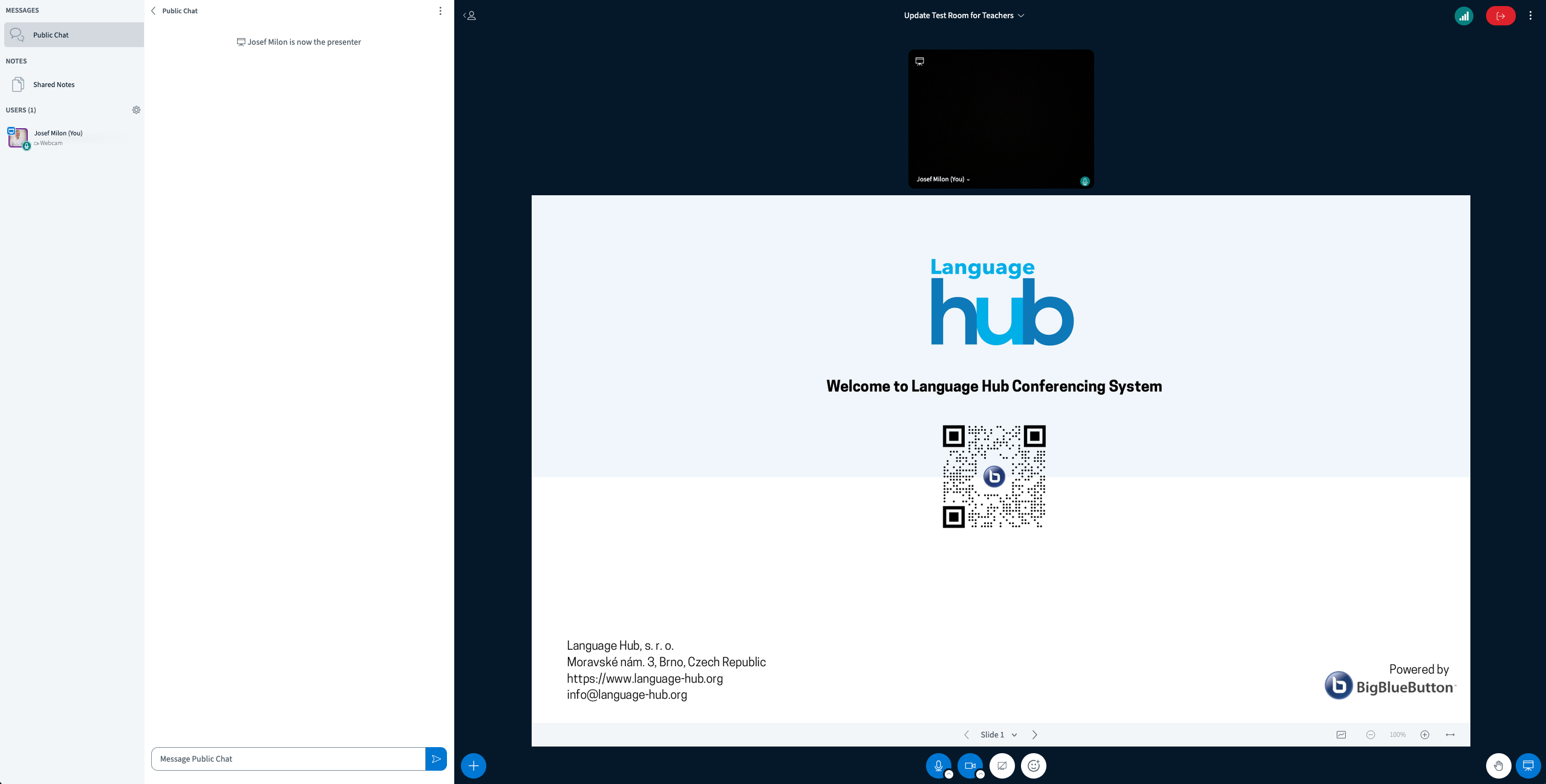
Presentation content in the classroom
There are POTX templates for your usage:
- Canva template (dark mode): https://www.canva.com/design/DAEbuviFp44/tyUgCe-0DqbZIq8z_FR63w/view?utm_content=DAEbuviFp44&utm_campaign=designshare&utm_medium=link&utm_source=sharebutton&mode=preview
- light mode: https://www.language-hub.org/hubrepository/bbb_template_canva_extended_2020.potx
- dark mode https://www.language-hub.org/hubrepository/bbb_template_canva_extended_dark_2020.potx
These templates secure the optimal display in the virtual classroom. Please use them only.
Upload the prepared material to the classroom by hitting the button "+".
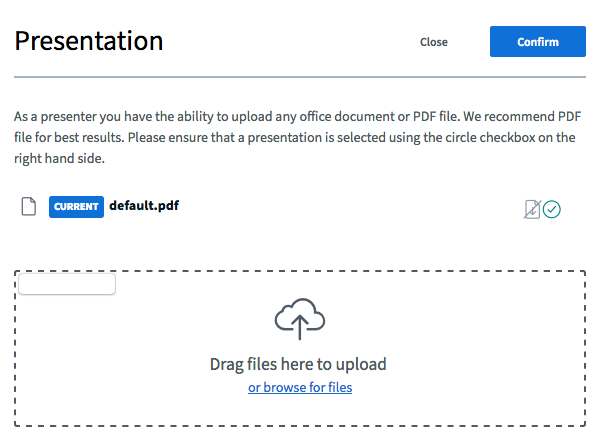
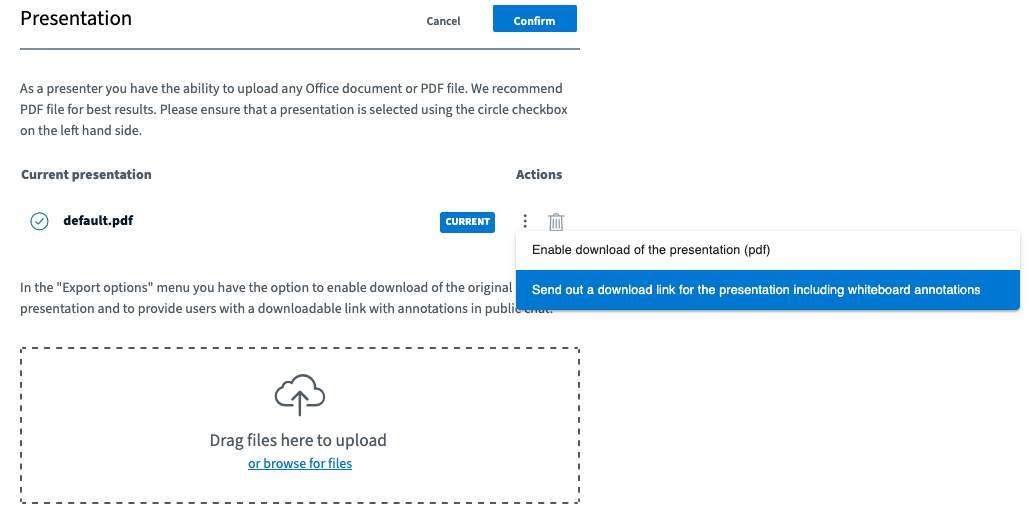
Enable users to download the presentation by selecting this option.

Store the presentations to the course folder for students' usage (e.g. if they miss the class)
Virtual classroom attendance evidence
Electronic attendance module is available in every course folder to take the attendance. Check this wiki page with details: https://www.language-hub.org/mod/wiki/view.php?pageid=942.
Hints
Chat window export
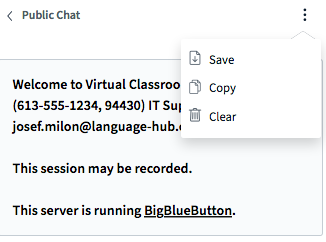
Warning: When the lesson is ended, the contents of the chat window will no longer be available.
Shared notes
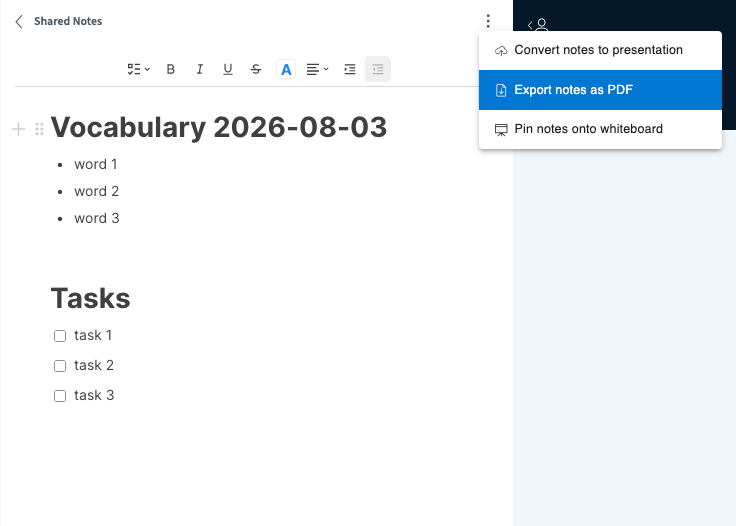
This collaborative tool allows users to participate in real-time text creation/revision. It is possible to export the contents in PDF format.
White board
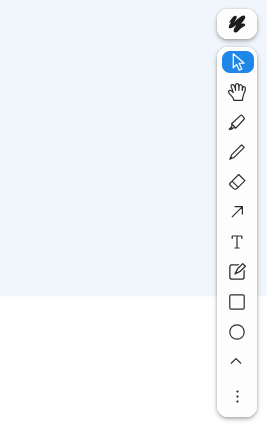
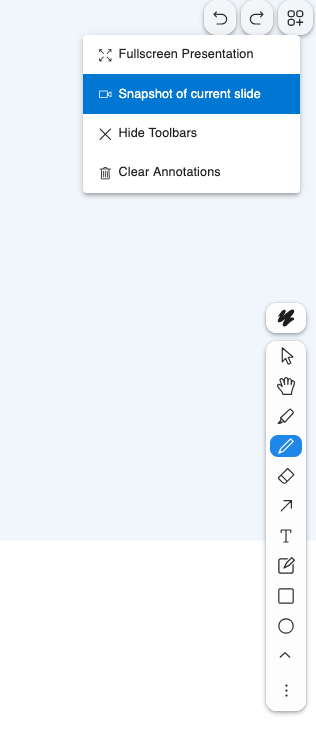
There are different tools available for usage in the whiteboard. You can insert text, draw shapes, underline or use handwriting to share your ideas. Please have in your mind that the contents of the whiteboard will be erased once you close the session. To keep it for the further usage you need to do the snapshots during the session or you can allow downloading the presentation with all your remarks and annotations. The file(s) you can then upload to the course folder.
Play audio file in the classroom
To play your audio file in the virtual classroom, follow these instructions:
- You have a link (URL) of the audio file and this link is accessible over the Internet, e.g. www.mydomain.com/myaudiofile.mp3: simply copy&paste this link to the dialogue that appears after clicking the button "Share external video". The playback will start automatically.
- You have your audio file inserted into the course folder:
- It is necessary to be logged in to the main system all the time to be able to play audio.
- Drag&Drop the file to any section in the course folder

- Open the file and using the right click in the following dialogue, copy the URL of the file.
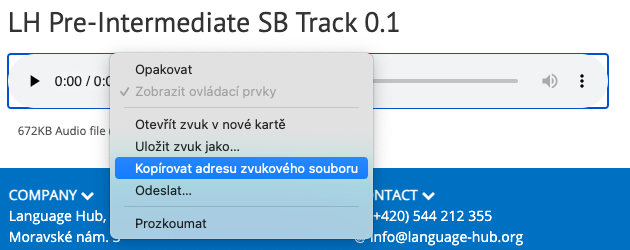
- Paste the URL to the sharing dialogue in the virtual clasroom
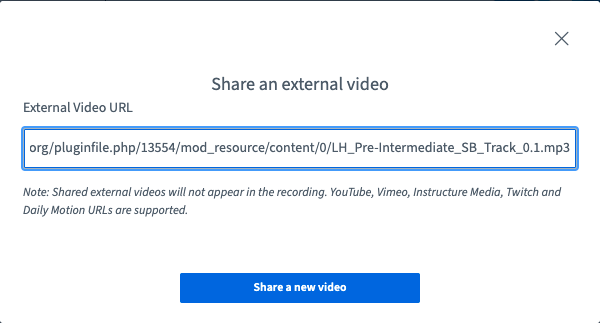
- The playback will start.

Please keep in your mind that for the best audio quality and to avoid any echo, it is ok if all participants are muted when the audio is played.
What if
You disconnect from Internet
The system keeps the current virtual classroom. Until you log out from the classroom, all contents will be available. If you disconnect from the Internet (or your computer freezes), simply return to the classroom as soon as possible. No information will be lost and users will be still connected.
Your sound or camera stop working
Refresh you browser and check your Internet connection. If the problem persists, contact us via email info@language-hub.org or call us at +420 544 212 355.
Videotutorials
General
Whiteboard
Audio
Webcam
Presentations
Chat
External video/audio sharing
News in version 2.4.5
There are several improvements implemented into this version of BigBlueButton (updated in April 2022):
- increased stability and performance
- learning analytics dashboard for users (talk time, webcam time, activites ...)
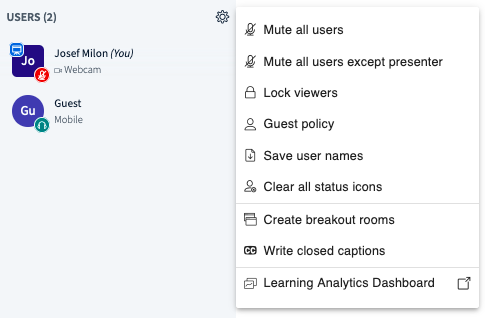
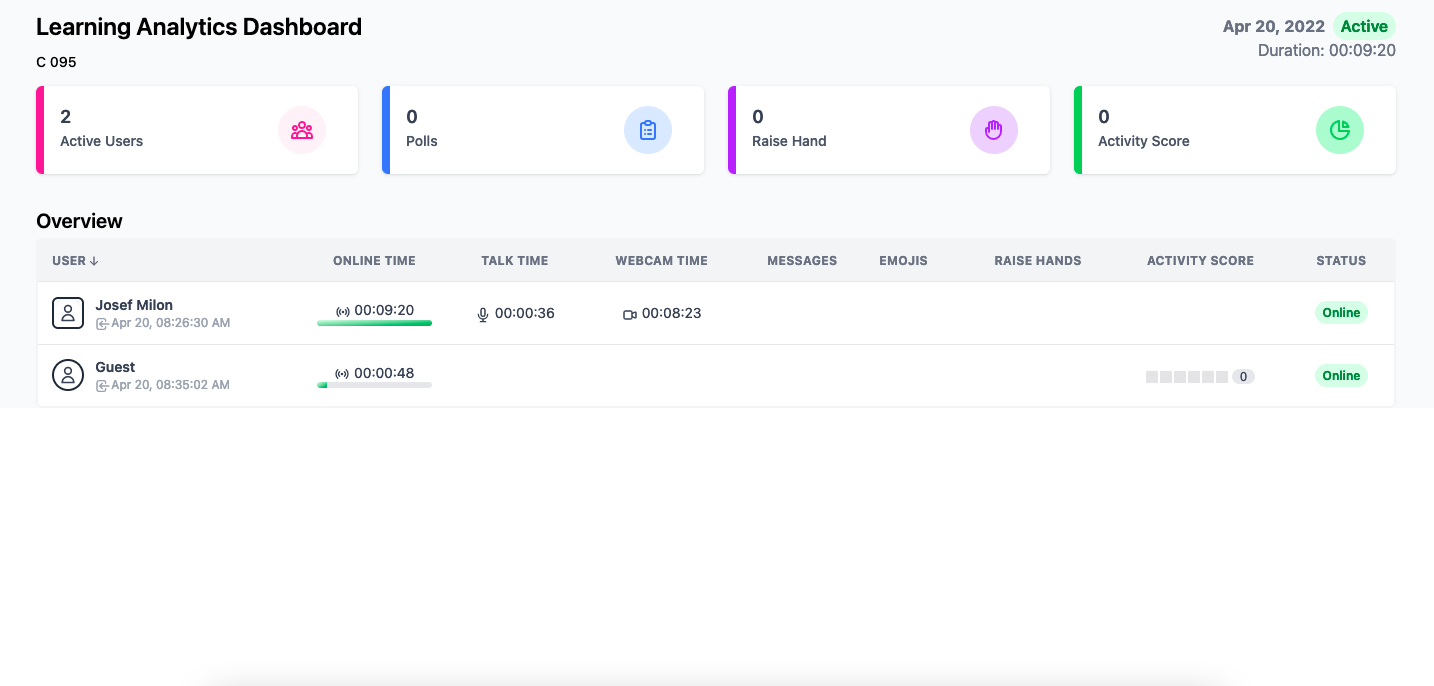
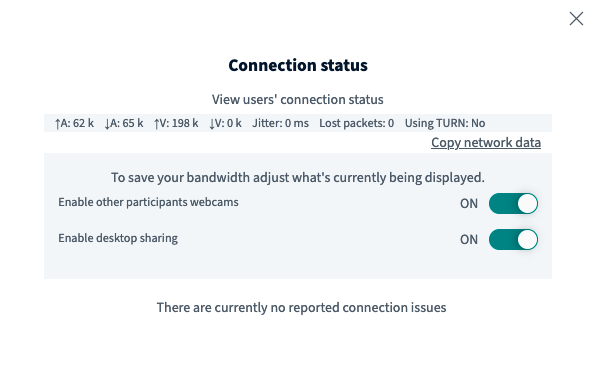
- connection status icon (accessible from top right corner)

- webcam background change
Is the information on this page incomplete or incorrect? Let us know.